Adding Multiple Patient Addresses
Multiple addresses can be entered for a Patient and can be assigned to be used for GPS coordinates. In the address selection criteria includes Primary Address, GPS, Home, and Community, as described in the table below.
|
Address Type |
Description |
|
Primary |
Unique for each Patient and required for the Patient Profile. The Primary Address is stored in the Patient Profile. At-least one Primary Address must be defined. |
|
GPS |
(Optional) Can be selected in multiple address. This is the address used if GPS is the chosen modality to clock in/out (from this address). |
| Home | Select if the address applies to the Patient's home. |
| Community | Select if the address applies to a community center outside the home. |
Note: These Addresses apply to New Patients and Referrals.
These Addresses are added when creating a New Patient in the system. Navigate to Patient > New Patient and complete the Demographics section. In the Address section, enter the Patient’s Primary Address (as selected under the Primary column), and select the Address Type(s) applicable to the address. To add an Address and/or Allow GPS Address, click the Add button (as illustrated in the image below).

New Patient Address
As a result, the Patient’s Addresses are shown as indicated.

Added Patient Addresses
To add Notes to a specific address, click the Add link in the Notes column for a specific address. Enter a note in the Notes field and click the Save button.
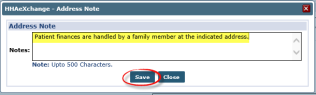
Patient Address Note
Once saved, all entered Addresses appear under the Address section (as seen in the following image). The locator icon under the Address Type(s) column indicate that the address is GPS enabled. Under the Notes column, a note icon indicates if the address has a note attached.

Patient Profile: Multiple Addresses
All specified addresses are imported into the Patient Profile with indicated Address Type(s) when a Referral is converted to a Patient.