Automatic Email
The Automatic Email section is used to facilitate system-generated automatic emails triggered by specific functions performed in the system for Linked Patients. The Automatic Email library of Common Notifications includes a diverse number of notification emails created according to functionality and business needs. To add specific intended recipients, click the Edit icon at far right corresponding to the applicable Common Notification.
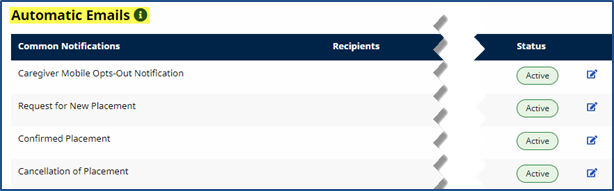
Edit Office: Automatic Email
Once the Edit icon is clicked, the Automatic Email Recipients window opens for the Authorized Edited notification (as shown in the image below). Select specific recipients and/or recipient groups (e.g., Patient Coordinator and Roles).
Only intended recipients can be edited using the Automatic Email functionality. Refer to the table below describing recipient types.
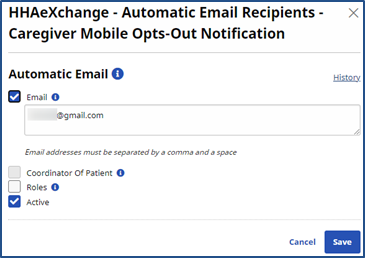
Select Automatic Email Recipients
|
Recipient Type (Select…) |
Description |
|---|---|
|
|
Enter specific recipient’s email address to receive notification. Enter as many email addresses as needed separated by a comma and space. |
|
Coordinator of Patient |
Directs the system to automatically send an email notification to a Patient’s Coordinator as indicated in the system. |
|
Roles |
Expands a multi-select menu to indicate applicable roles to receive notification. All is the default selection. Users may select a specific role as assigned by the Agency. |
Select the Active checkbox to generate an automated message for all entered recipients when the appropriate condition is met. To stop the automated message for all recipients, unselect the Active checkbox.
Received Note Notification
To ensure that notification emails are received, scroll to the Received Note Notification section, underneath the Automatic Email section. Click the Add Custom Notification button (as shown in the following image) to indicate the information (selected under the Note Reasons field) for the notification.

Received Note Notifications
In the Automatic Email window, complete the required fields indicated in the table below.
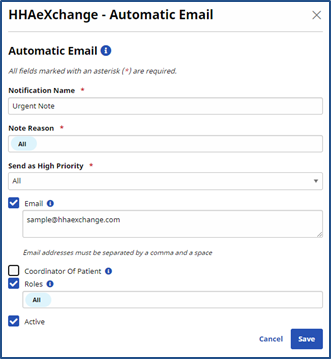
Automatic Email Settings
|
Field |
Description |
|---|---|
|
*Notification Name |
(Required) Subject or title of the notification used to identify the notification under the Received Note Notifications column. |
|
*Note Reason |
(Required) Select the reasons to issue an automatic email (functionality to execute). Note Reasons originate on the Payer side and indicate the corresponding Payer. All is the default selection; however, each dropdown is populated with associated Payer Reasons by Office. |
|
Emergency of |
Select Yes, No, or All. This field is used to configure the priority of the messages so that emails are only sent based on priority settings.
|
|
Recipients |
Refer to previous section. |
|
Active |
Refer to previous section. |
The following image is a sample email notification for a Confirmed Placement.
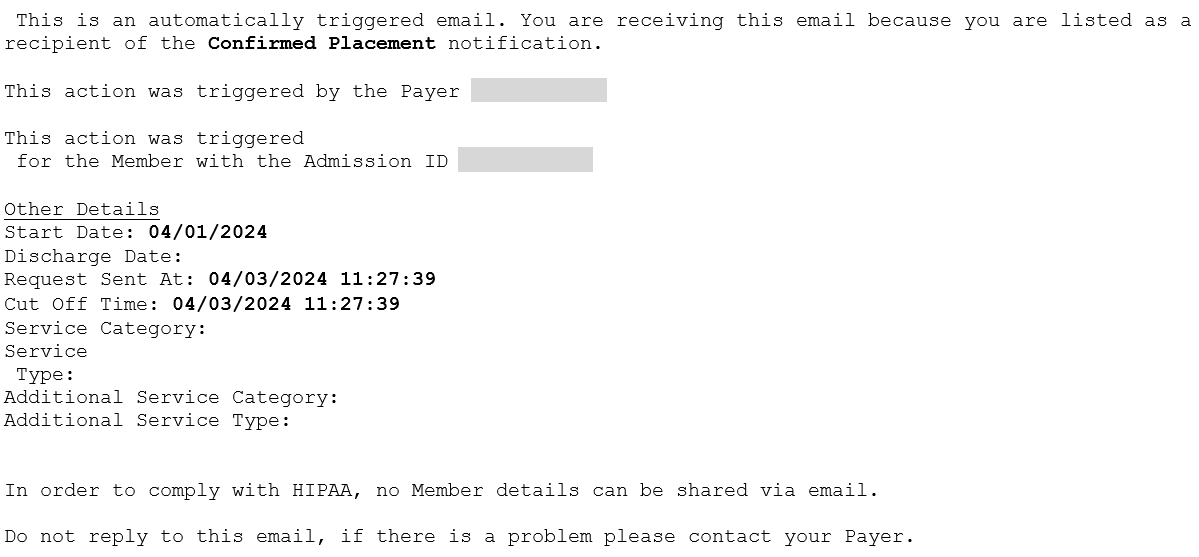
Email Notification