Adjust a Shift
A shift may need to be adjusted. For example, a Caregiver arrives at the shift but cannot clock-in because of a dead phone battery or a Caregiver forgets to clock-in at the start of the shift but remembers and clocks in late before the end of the shift.
Complete the following steps to adjust a shift.
-
In the Services Portal, search for the shift to be adjusted. Refer to Search Shifts for details on searching for shifts.
-
On the shift, click on the ellipsis (…) in the Actions column and select Propose Adjustment.
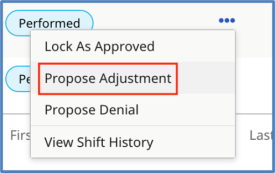
Actions: Select Propose Adjustment
-
When the Propose Adjustment page is displayed, complete the required fields (marked with a red asterisk *).
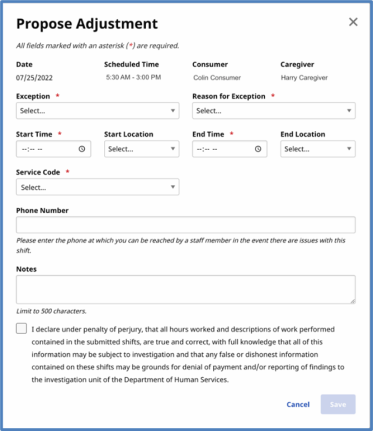
Propose Adjustment page
-
Select an Exception (why an adjustment is made) and a Reason for Exception (what led to the exception) that best matches the situation.
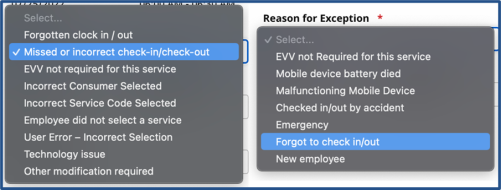
Exception and Reason Code Lists
-
Adjust other fields (such as Start Time, End Time, Start Location, End Location, Service Code) as needed.
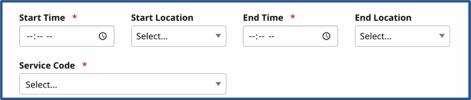
Required Fields
-
In Notes, type a comment to describe the change. This comment is seen by other parties when approving the changes. Finally, select the confirmation statement checkbox and click Save.
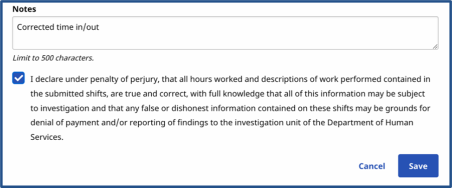
Confirm the Adjustment
The other party is notified of the shift adjustment.
If the Caregiver made the changes, the Consumer or Representative must review and approve the adjustment.
If the Consumer or Representative made the changes, the Caregiver must approve the adjustment.
Refer to Approve a Shift to finish the approval process.