Log in to the Payer Portal
The HHAX Professional system is web-based, and requires an internet connection. Any disruption to internet service ends a user’s session, as HHAX does not support an “offline” mode.
To sign in to HHAX Professional, follow the steps below.
If a system notification message from HHAX is displayed, read the message, and then click Leave Open or Mark as Read and Close to access the system.
|
Step |
Action |
|---|---|
|
1 |
In a web browser, navigate to https://hhaexchange.com. |
|
2 |
At the top right corner of the HHAX homepage, click Login.
HHAeXchange.com |
| 3 |
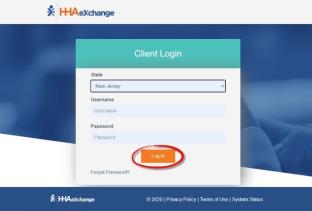
In the dialog box that appears, select your State, enter your Username and Password, and click Log In.
Login Dialog Box Note: If you have forgotten your password, click Forgot Password at lower left and follow the prompts to reset it. Refer to the Self-Service Password Reset Job Aid for further details. Note: A System Status link is displayed in the footer of the Login Page for user reference. |
| 4 |
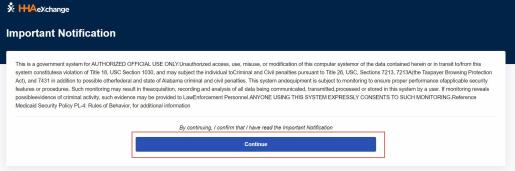
If a Privacy and Confidentiality Notice is displayed when logging in, click Continue to acknowledge it and access the system.
Sample of a Privacy & Confidentiality Notice This setting can be adjusted by HHAX System Administration. Contact the HHAX Support Team for assistance. |
| 5 |
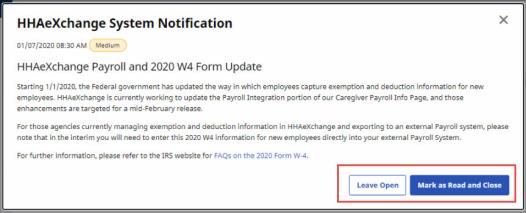
If a system notification message from HHAX is displayed, read the message, and then click Leave Open or Mark as Read and Close to access the system.
Sample of a System Notification Note: If you click Leave Open, the notification is displayed again the next time you log in. |